Showing posts with label Service Pack 1. Show all posts

Monday, 7 January 2013

System Center 2012 Service Pack 1 - Where's the goodies?

There's plenty of posts starting to come online now regarding Service Pack 1, especially around installation and new features.

If you're looking for that type of content then you might like to start with these links:
  • Kevin Greene's covered installing SCOM SP1- Part 1, Part 2, Part 3
  • Kevin Greene's also covered Installing Orchestrator SP1 
  • Bob Cornelissen has a good post for the DPM 2012 -> SP1 upgrade here
  • Marcel Zehner has you covered for the SCSM SP1 upgrade here
  • Russ Rimmerman rounds off the links with ConfigMgr upgrade here

However, I thought it might be useful to pull together a listing of the various downloads that would be handy for anyone about to start implementing from scratch or upgrading alike to have to hand.

  1. System Center 2012 Service Pack 1
    Unfortunately I can't list a download link for this as it's not available as a simple upgrade Service Pack.  The Service Pack is actually slipstreamed into the System Center 2012 media to allow you to either install fresh or upgrade from it.
    To obtain it you need to head to one of the following sites with your appropriate subscription account:
  2. New and Updated Orchestrator (SCORCH) Integration Packs (IP's)
     
    Orchestrator Integration Toolkit
    System Center 2012 SP1 Integration Packs
    Integration Pack for REST
    Exchange User
    Exchange Admin
    FTP
    Active Directory
    Windows Azure
     
    vSphere IP for SP1 (Bit confused as to whether this IP is still Beta or not)
     
    HP iLO and OA
     
    HP Service Manager
     
    HP Operations Manager
     
    IBM Tivoli Netcool/Omnibus
     
  3. Configuration Manager Component Add-ons and Extensions
     
    11 Essential tools to help you manage, maintain and troubleshoot your ConfigMgr environment, containing:
    • Client Spy
    • Policy Spy
    • Security Configuration Wizard Template
    • Send Schedule Tool
    • Power Viewer Tool
    • Deployment Monitoring Tool
    • Run Metering Summarization Tool
    • Role-based Administration Modelling and Auditing Tool
    • Wakeup Spy
    • Content Library Transfer
    • Content Ownership Transfer
       
  4. ConfigMgr Clients for Additional Operating Systems
     
    Service Pack 1 brings with it support for Mac OSX and Linux/Solaris and these are the native clients for those Operating Systems
     
  5. Windows Phone 8 Company Portal
     
    Might not seem like something to list with System Center, but you'll need this for side loading applications via ConfigMgr and Intune on Windows Phone 8 with System Center SP1
     
  6. Service Manager Authoring Tools
     
    Need to extend or customise SCSM forms or add new classes?  Then you need this Authoring Tool.
     
  7. Server App-V Remote Sequencer
     
    Rather than having to install apps on the same server as your sequencer, you can now use this tool to install software on a remote server and monitor it for sequencing.
     
  8. Data Protection Manager (DPM) Azure Online Backup Update
     
    Following very quickly on SP1's heels is this update for DPM that brings the following new or improved features to DPM's ability to utilise the Azure Online Backup Service:
     
    • This update improves the performance of Windows Azure Online Backup.
    • Windows Azure Online Backup support for a SQL Server data source in System Center 2012 SP1 DPM is available.
    • The retention range of Windows Azure Online Backup for System Center 2012 SP1 DPM is increased to support 120 recovery points.
       
  9. Update Rollup 1 for System Center 2012 Service Pack 1
    http://support.microsoft.com/kb/2785682

    Hot on the heels of Service Pack 1 and before SP1 is even fully Generally Available is Update Rollup 1 bringing a collection of further bug fixes to System Center 2012 with SP1.
     
  10. Visio 2010 & SharePoint 2010 Extensions
    http://www.microsoft.com/en-us/download/details.aspx?id=29268

    This Visio 2010 Add-in will enable diagrams to show health states of System Center 2012 - Operations Manager managed objects within the Visio diagram. This live health state functionality is available both when viewing the document in Visio 2010 and in SharePoint 2010.
     
  11. Visual Studio Authoring Extensions (VASE)
    http://www.microsoft.com/en-us/download/details.aspx?id=30169

    The System Center 2012 Visual Studio Authoring Extensions—VSAE—is an add-in for Visual Studio 2010 Professional provides Lifecycle Management Tools to support Management Pack Authoring.
     
  12. Visio MP Designer (VMPD)
    http://www.microsoft.com/en-us/download/details.aspx?id=30170

    The System Center 2012 Visio MP Designer—VMPD—is an add-in for Visio 2010 Premium that allows you to visually design a System Center Operations Manager Core Monitoring Management Pack.
     
  13. System Center 2012 SP1 Configuration Manager Package Conversion Manager 2.0
    http://www.microsoft.com/en-us/download/details.aspx?id=34605

    Package Conversion Manager (PCM) is a feature pack download that lets you to convert ConfigMgr 2007 packages into System Center 2012 SP1 Configuration Manager applications.
     
  14. System Center Data Protection Manager CSV Serialization Tool
    http://www.microsoft.com/en-us/download/details.aspx?id=36524

    The CSV XML merging tool makes CSV VM backup serialization easier for Windows 2008R2 CSV Cluster environment.
     
  15. Global Service Monitor (GSM) Management Packs
    http://www.microsoft.com/en-us/download/details.aspx?id=36422

    These management packs enable the System Center Global Service Monitor functionality within System Center Operations Manager 2012 SP1
     
  16. System Center 2012 Service Manager Component Add-ons and Extensions
    Addons for Service Manager including:
    IT Governance Risk and Compliance (GRC) Process Management Pack
    System Center Cloud Services Process Pack - coming soon

    Friday, 4 January 2013

    System Center 2012 SP1 Setup Software Prerequisites

    Since I'm updating my lab environment (more like a wipe and reload) to Service Pack 1 for System Center 2012 I thought I'd just take the time quickly (mainly for my own reference) to document the prerequisites needed for deploying the various components.

    This is all based on installing it on Windows Server 2012 as the Server OS and SQL Server 2012 in a clustered, named instance setup.

    This post is focused on software pre-reqs, not design or account pre-reqs.  See my other post here about service accounts and System Center 2012.  This post is also not a step by step install guide.


    Virtual Machine Manager (SCVMM)
    Very simple for SCVMM, before the SCVMM installation install the Windows ADK and only choose:
    • Deployment Tools
    • Windows Preinstallation environment (Windows PE)
    Alternatively you can use the following PowerShell snippet to automate the download and install of the ADK components if your server has Internet access:

    $dwnld = "C:\Downloads"
    if (!(Test-Path -path $dwnld))
     {
     New-Item $dwnld -type directory
     }
    $object = New-Object Net.WebClient
    $ADKurl = 'http://download.microsoft.com/download/9/9/F/99F5E440-5EB5-4952-9935-B99662C3DF70/adk/adksetup.exe'
    $object.DownloadFile($ADKurl, "$dwnld\adksetup.exe")
    Start-Process -FilePath "$dwnld\adksetup.exe" -Wait -ArgumentList "/quiet /features OptionId.DeploymentTools OptionId.WindowsPreinstallationEnvironment"
      After that there is nothing extra required.


      Configuration Manager (ConfigMgr)
      Slight bug/feature in Server 2012 when it comes to installing .NET Framework 3.5 where you'll need the install media to get it installed using the following command:
      N.B. This command line assumes you have the source media in the D drive.

      dism /online /enable-feature /featurename:NetFX3 /all /Source:d:\sources\sxs /LimitAccess


      To install all other features via PowerShell:

      Get-Module ServerManager

      Install-WindowsFeature Web-Windows-Auth,Web-ISAPI-Ext,Web-Metabase,Web-WMI,BITS,RDC, NET-Framework-Features,Web-Asp-Net,Web-Asp-Net45,NET-HTTP-Activation, NET-Non-HTTP-Activ,UpdateServices-Services,UpdateServices-RSAT


      Also required is the Windows ADK and only choose:
      • Deployment Tools
      • Windows Preinstallation environment (Windows PE)
      • User State Migration Tool (USMT)
      Alternatively you can use the following PowerShell snippet to automate the download and install of the ADK components if your server has Internet access:

      $dwnld = "C:\Downloads"
      if (!(Test-Path -path $dwnld))
       {
       New-Item $dwnld -type directory
       }
      $object = New-Object Net.WebClient
      $ADKurl = 'http://download.microsoft.com/download/9/9/F/99F5E440-5EB5-4952-9935-B99662C3DF70/adk/adksetup.exe'
      $object.DownloadFile($ADKurl, "$dwnld\adksetup.exe")
      Start-Process -FilePath "$dwnld\adksetup.exe" -Wait -ArgumentList "/quiet /features OptionId.DeploymentTools OptionId.WindowsPreinstallationEnvironment OptionId.UserStateMigrationTool"
        ConfigMgr has more pre-reqs (Silverlight 5 etc) but these should be remediated by the ConfigMgr installer automatically.


          Service Manager (SCSM)
          For all SCSM roles we need to use dism to add .Net 3.5 before we can even start the installer

          dism /online /enable-feature /featurename:NetFX3 /all /Source:d:\sources\sxs /LimitAccess

          Management Server & Data Warehouse
          SQL Analysis Management Objects (AMO) from here
          SQL Native Client from here N.B As stated earlier this is the SQL 2012 Native Client, you'll need the version matching your SQL environment.

          Both of these pre-reqs are part of the SQL 2012 Feature Pack

          Report Viewer 2008 SP1 is also required, but not on the Data Warehouse.

          If the server you are installing SCSM on has internet access then you could use this Powershell snippet to download and install the Prerequisites automatically.

          $dwnld = "C:\Downloads"
          if (!(Test-Path -path $dwnld))
           {
           New-Item $dwnld -type directory
           }
          $object = New-Object Net.WebClient
          $AMOurl = 'http://go.microsoft.com/fwlink/?LinkID=239666&clcid=0x409'
          $SNCurl = 'http://go.microsoft.com/fwlink/?LinkID=239648&clcid=0x409'
          $RPTurl = 'http://download.microsoft.com/download/0/4/F/04F99ADD-9E02-4C40-838E-76A95BCEFB8B/ReportViewer.exe'
          $object.DownloadFile($AMOurl, "$dwnld\SQL2012AMO.msi")
          $object.DownloadFile($SNCurl, "$dwnld\SQL2012NCli.msi")
          $object.DownloadFile($RPTurl, "$dwnld\ReportViewer.exe")
          Start-Process -FilePath msiexec -ArgumentList /i, "$dwnld\SQL2012AMO.msi", /qn -Wait
          Start-Process -FilePath msiexec -ArgumentList /i, "$dwnld\SQL2012NCli.msi", /qn, IACCEPTSQLNCLILICENSETERMS=YES -Wait
          Start-Process -FilePath "$dwnld\ReportViewer.exe" -ArgumentList /q -Wait


          Orchestrator (SCORCH)
          Again, we need to use dism to add .Net 3.5 before we can even start the installer

          dism /online /enable-feature /featurename:NetFX3 /all /Source:d:\sources\sxs /LimitAccess

          The only other pre-req is the IIS role, but if this isn't installed the SCORCH setup will do this for you anyway.

          However, if you'd like to prep the server manually, use the following PowerShell command:

          Add-WindowsFeature Web-Server,Web-Log-Libraries,Web-Request-Monitor,Web-Http-Tracing,Web-Digest-Auth,Web-Windows-Auth,Web-Net-Ext,Web-Asp-Net,Web-CGI,Web-Mgmt-Tools,NET-WCF-HTTP-Activation45,NET-WCF-MSMQ-Activation45,NET-WCF-Pipe-Activation45,NET-WCF-TCP-Activation45,MSMQ,RDC,WAS


          Operations Manager (SCOM)

          Operations Console
          Microsoft Report Viewer 2010 Redistributable Package is required on any device where the console is to be installed and that is usually at least one management server.

          The following PowerShell script will download and install it for you.

          $dwnld = "C:\Downloads"
          if (!(Test-Path -path $dwnld))
           {
           New-Item $dwnld -type directory
           }
          $object = New-Object Net.WebClient
          $RPTurl = 'http://download.microsoft.com/download/E/A/1/EA1BF9E8-D164-4354-8959-F96843DD8F46/ReportViewer.exe'
          $object.DownloadFile($RPTurl, "$dwnld\ReportViewer.exe")
          Start-Process -FilePath "$dwnld\ReportViewer.exe" -ArgumentList /q -Wait


          Web Console
          The SP1 Operations Manager 2012 web console requires the some IIS Server Features to be enabled.

          The following PowerShell line will install and enable the required features:

          Add-WindowsFeature Web-Server,Web-Request-Monitor,Web-Windows-Auth,Web-Asp-Net,Web-CGI,Web-Mgmt-Tools,NET-WCF-HTTP-Activation45,Web-Metabase

          If for some reason the pre-req checker is complaining about "Enable the ISAPI and CGI restrictions in IIS for ASP.NET 4.x" then try a reboot first but if it still complains then try the following command and then another reboot.  It says the command doesn't work in Server 2012/IIS8 but it worked for me after a reboot.
          C:\Windows\Microsoft.NET\Framework64\v4.0.30319\aspnet_regiis.exe -enable -r


          App Controller
          The following PowerShell line will install and enable the required features:

          Add-WindowsFeature NET-Framework-Features,NET-Framework-Core,Web-Mgmt-Console,Web-Static-Content,Web-Default-Doc,Web-Http-Errors,Web-Http-Logging,Web-Request-Monitor,Web-Http-Tracing,Web-Stat-Compression,Web-Filtering,Web-Basic-Auth,Web-Windows-Auth,Web-ISAPI-Filter,Web-ISAPI-Ext,Web-Net-Ext,Web-Asp-Net45


          General
          If you need to check if a server has some of the features installed already, use this PowerShell line:

          Get-WindowsFeature | where {$_.Installed -eq "True"} | ft DisplayName, Name, Installed

          Thursday, 20 December 2012

          System Center 2012 Service Pack 1 RTM & Download

          There's been bits of information floating around the internet over the last few days that System Center 2012 SP1 had gone RTM.

          Like everything, people were sceptical as there was no official announcement, only a blog post on the DPM forums.

          However, it had gone RTM internally and today saw it released to those with TechNet and MSDN subscriptions.


          For those without TechNet or MSDN, chances are you will still have to wait another week or so until about the 3rd of January (rumoured)

          Time to go update the lab!

          Friday, 12 October 2012

          VMM 2012 SP1 (Beta) with Server 2012 Hyper-V Issue

          After migrating my 2008 R2 cluster across to Server 2012 I was having problems adding in the cluster/hosts to SC2012 Virtual Machine Manager SP1.

          The cluster could be discovered and imported fine, but a few minutes later would report back that it could no longer be managed.

          It turns out that because on the rebuild I didn't make the hosts DC's (it's a testlab before someone comments on best practise!!) so the computer accounts got placed into an OU along with the normal servers that had a Group Policy applying some WinRM settings.
          Unfortunately doing a winrm /qc or allowing VMM to check that WinRM is enabled doesn't set/check all the required settings are actually in place.

          Having a look around I found the following TechNet forum post from Wes Kroesbergen who listed a registry key that's advisable to have set, plus the winrm commands to set all of the required settings.

          http://social.technet.microsoft.com/Forums/en-US/virtualmachingmgrhyperv/thread/4bd9be4b-0ff9-46f3-bf32-1b7c1245c494


          Wrap the below into a batch file (you can't use these commands via PowerShell before you try), run it on your Hyper-V hosts and you're good to go!

          reg add HKLM\SOFTWARE\Microsoft\Windows\CurrentVersion\Policies\System /v LocalAccountTokenFilterPolicy /t REG_DWORD /d 1 /f

          winrm set winrm/config/service/auth @{CredSSP='True'}
          winrm set winrm/config/winrs @{AllowRemoteShellAccess='True'}
          winrm set winrm/config/winrs @{MaxMemoryPerShellMB='2048'}
          winrm set winrm/config/client @{TrustedHosts='*'}
          winrm set winrm/config/client/auth @{CredSSP='True'}

          SCVMM 2012 SP1 - Missing properties and unable to refresh VM

          Giddy as a kid in a sweet shop I migrated my testlab cluster to Server 2012, migrated my VM's across and installed System Center 2012 Virtual Machine Manager SP1 to manage it.

          Straight away I ran into some slightly strange issues.

          1. Majority of the Auto Discovered VM's refused to see hardware configuration properties such as:
            Virtual Hard Disks and Controllers
            Virtual Network Cards
          2. Majority of the Auto Discovered VM's left hardware configuration properties at defaults, such as:
            Processor Count and Memory Amount
            High Availability Status
          3. Every time I tried to refresh a VM I would get the error:
            Error (2923)

            A malformed response was received while trying to contact the VMM agent on hyperv01.domain.local.
            Unspecified error (0x80004005)

            Recommended Action
            1) Ensure the VMM agent is installed and that the SCVMMAgent service is running.
            2) If the SCVMMAgent service is running, restart the service, and then verify that WS-Management is installed correctly and that the WinRM service is running.
            3) Check the manufacturers' Web sites to ensure that you have the latest drivers for your network adapters and other devices.
          Looking on the Microsoft Connect site I found that someone called egilsk was having the same issues.

          Thankfully, last Friday (05/10/12) Mark at Microsoft posted the following suggestion to try:

          On the Hyper-V hosts run the following PowerShell commands

          Import-Module Hyper-V

          Get-WmiObject –Namespace “root\virtualization\v2” Msvm_PlannedComputerSystem | foreach{Get-VM –Id $_.Name} | Remove-VM –Force

          Once this has been run on your hosts, refreshing the VM's should work successfully and all of the missing/default hardware config should be updated and displayed.

          It looks like this is to do with the hosts having the VM stuck in a temporary state, even if brought across as a planned import or migration.

          The problem is now at least known about and should be fixed/handled in the next release of the Service Pack.

          Tuesday, 25 September 2012

          Windows Embedded Devices and Configuration Manager 2012 SP1

          Managing Windows Embedded Devices has always been possible with Configuration Manager, either with a lot of manual effort and scripting or more preferably using Windows Embedded Device Manager (WEDM) 2011 on top of ConfigMgr 2007.

          When System Center 2012 was released back in April we were promised an updated WEDM 2012 version would be coming along shortly.

          With the release of Service Pack 1 (Beta) for System Center the decision has been made to combine the features that would have been in WEDM directly into ConfigMgr.

          This is brilliant news as it now means that out of the box with ConfigMgr SP1 we will now be able to manage and deploy to Embedded Devices without having to install any extra clients or infrastructure.

          Here are a couple of bits of information around some of the new embedded features.

          Within the different deployment wizards you'll now start to see various options related to Embedded Devices which will help control the disabling and enabling of write filters.


          Along with utilising ConfigMgr features such as Maintenance Windows, WED client management is optimised in areas such as content download/reducing reboots.

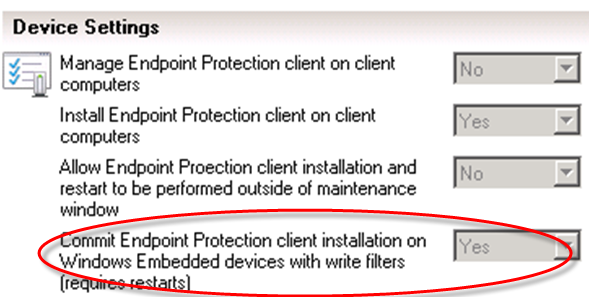
          EndPoint Protection gets some specific Embedded device settings...


          OSD for Embedded Devices will now allow images to be deployed purely from the distribution point (due to the low storage on thin clients) as well as allowing for a last step to be run after deployment, such as a script to enable auto-logon or enable write filters.

          Non-admins will be blocked from logging onto devices during servicing.

          Software Center will block self service installations when write filters are enabled to stop users getting into Ground Hog Day scenarios.

          Best Practises:
          • Maintenance Windows will become more important/heavily advised to simplify management of embedded devices
          • Plan for your persistence strategy
          • Make deployments Required rather than available for embedded devices
          • Look to use file write filters moving forward to make life simpler

          Supported Operating Systems:
          • Windows XP Embedded,
          • Windows Embedded 2009 Standard
          • Windows Embedded Standard 7
          • POS 2009
          • POS 7
          • Windows Thin PC
          In short.. WEDM 2012 is no more!!  Long live ConfigMgr 2012 SP1!!

          Friday, 21 September 2012

          Cloudy Day for ConfigMgr 2012

          While more and more news on the new features in Service Pack 1 for System Center 2012 keep coming, I happened to miss the mention about this one.

          With ConfigMgr SP1 we will get a new feature, Azure Cloud-Based Distribution Points.

          More information can be found in the TechNet Documentation library here:
          http://technet.microsoft.com/en-us/library/gg712321.aspx#BKMK_PlanCloudDPs

          With the upcoming Intune connection as well, it's starting to look like a very cloudy day in the ConfigMgr world (Sorry, I couldn't resist that one!)


          Monday, 10 September 2012

          System Center 2012 Service Pack 1 Beta Available

          Updated documentation has been popping up on TechNet the last couple of days and now the downloads for SP1 Beta for System Center 2012 has turned up.

          Before you go running off to install, remember this is Beta software and is not supported for production use unless working with Microsoft on the TAP program.

          The main SP1 download can be found here:
          http://www.microsoft.com/en-us/download/details.aspx?id=34607

          This contains the updates for:
          SC2012 ConfigMgr & EndPoint Protection - 377.3 MB
          SC2012 App Controller - 15.1 MB
          SC2012 Data Protection Manager Part 1 - 818.6 MB
          SC2012 Data Protection Manager Part 2 - 1.5 GB
          SC2012 Orchestrator - 68.6 MB
          SC2012 Operations Manager - 905.9 MB
          SC2012 Service Manager - 400.2 MB
          SC2012 Virtual Machine Manager - 756.4 MB

          N.B. Both parts for DPM are required, download and extract to the same folder before running setup

          There are also additional ConfigMgr clients for more Operating Systems to be found here:
          http://www.microsoft.com/en-us/download/details.aspx?id=34609

          • AIX Version 7.1 (Power)
          • AIX Version 6.1 (Power)
          • AIX Version 5.3 (Power)
          • HP-UX Version 11iv3 (IA64 & PA-RISC)
          • HP-UX Version 11iv2 (IA64 & PA-RISC)
          • RHEL Version 6 (x86 & x64)
          • RHEL Version 5 (x86 & x64)
          • RHEL Version 4 (x86 & x64)
          • Solaris Version 10 (x86 & SPARC)
          • Solaris Version 9 (SPARC)
          • SLES Version 11 (x86 & x64)
          • SLES Version 10 SP1 (x86 & x64)
          • SLES Version 9 (x86)
           There are also some more SP1 Beta Integration Packs for Orchestrator:


          Brief summary of Service Pack 1 features from the download page:

        • Virtual Machine Manager
          • Improved Support for Network Virtualization
          • Extend the VMM console with Add-ins
          • Support for Windows Standards-Based Storage Management Service, thin provisioning of logical units and discovery of SAS storage
          • Ability to convert VHD to VHDX, use VHDX as base Operating System image

        • Configuration Manager
          • Deployment and management of Windows 8 and Windows Server 2012
          • Distribution point for Windows Azure to help reduce infrastructure costs
          • Automation of administrative tasks through PowerShell support
          • Management of Mac OS X clients and Linux and UNIX servers
          • Real-time administrative actions for Endpoint Protection related tasks

        • Data Protection Manager
          • Improved backup performance of Hyper-V over CSV 2.0
          • Protection for Hyper-V over remote SMB share
          • Protection for Windows Server 2012 de-duplicated volumes
          • Uninterrupted protection for VM live migration

        • App Controller
          • Service Provider Foundation API to create and operate Virtual Machines
          • Support for Azure VM; migrate VHDs from VMM to Windows Azure, manage from on-premise System Center

        • Operations Manager
          • Support for IIS 8
          • Monitoring of WCF, MVC and .NET NT services
          • Azure SDK support

        • Orchestrator
          • Support for Integration Packs, including 3rd party
          • Manage VMM self-service User Roles
          • Manage multiple VMM ‘stamps’ (scale units), aggregate results from multiple stamps
          • Integration with App Controller to consume Hosted clouds

        • Service Manager
          • Apply price sheets to VMM clouds
          • Create chargeback reports
          • Pivot by cost center, VMM clouds, Pricesheets

        • Server App-V
          • Support for applications that create scheduled tasks during packaging
          • Create virtual application packages from applications installed remotely on native server
        • Monday, 2 July 2012

          Configuration Manager 2012 - Wally Mead's TechEd in a day (UK)

          Just after finishing his sessions at TechEd Europe and on his way home Cliff Hobs and 1E hijacked Wally Mead and persuaded him to present a compressed version of his TechEd content to a small UK audience.
           
          I was lucky enough to attend and here's my notes from the day.

           
          Session Agenda:
          • Infrastructure Simplification and Hierarchy Design Considerations
          • Forest Discovery and Boundary Groups
          • SQL Replication
          • Client Agent Settings
          • Role-Based Administration
          • What's Coming in SP1
          System Center 2012 ConfigMgr is all about:
          1. Empowering the user - User centric management/deployment
          2. Unify Infrastructure - Reduce costs by simplifying
          3. Simplify Administration - Better console, Role based security, client health etc.
          Infrastructure Promises
          • Modernise the Infrastructure - Minimise Remote Office requirements
          • Consolidate - Role Based Access, language neutral, collection based agent settings
          • Scalability - SQL Replication
          Most of this session is actually covered in my previous "A Day with Wally Mead" post here:
          http://systemscentre.blogspot.co.uk/2011/11/configuration-manager-2012-day-with.html

           
          The rest of this post will cover some of the upcoming SP1 features that were covered first at TechEd and then again today with a little more clarification

           
          SQL Replication Compression:
          • This can be enabled per link, initial tests show a big decrease in traffic, with slight increase on CPU usage for decompression.
          • Also the ability to set number of retention days for replicated data before a full sync is required, useful for occasionally disconnected site servers (think cruise liner ship) .

           
          SQL Distributed views:
          • Allows a view of data from one site to another using a query that retrieves data on-demand, replication is turned off
          • When enabled, no site data (hinv, sinv, and metering data) is replicated or stored at the CAS
          • Saves on data storage and link traffic
          • Requires a good, reliable connection between SQL Servers for sites where distributed views are enabled

           
          Hierarchy Expansion:
          • Ability to add a CAS after installation of Primary to help with expansions scenarios but only for one primary.  A second primary would need a new primary to be built and joined then a migration from the old primary to the new primary.
          • Some roles such as Software Update and Asset Intelligence that can only live on a CAS in a hierarchy will need remediating before expansion and you will be prompted about these when attempting an expansion.  It's also possible that other things may require some post expansion work.
          Site to Site Migration:
          • To help with expansion scenarios, migrating from one 2012 site to a new 2012 site has been made easier.
           User Profile and Data Management:
          • Group Policy settings for folder redirection, caching etc now a configurable option within ConfigMgr under Settings Management and is for Windows 8 clients only that now expose this setting/information within WMI

          Big Green Button (not an official feature name!):
          • Ability to force clients to go download EndPoint definitions "NOW". Basically creates a TCP connection to force clients to poll for definitions within a couple of minutes rather than waiting for normal policy schedule. Useful for malware outbreaks.
          • This may be extended for other client policy features later, but time scale currently undetermined.
          App-V feature changes:
          • New Deployment Type for App-V 5 - required due to new appx file type.
          • No present ability to use App-V 5 Shared Cache feature
          • App-V 4.6 SP2 (for Windows 8 support)
          • Connection Groups to allow different App-V packages to interact without having to force repackaging - requires App-V 5.
          OSD feature changes:
          • Bitlocker changes - TPM and PIN & Used Space Bitlocker
          • UEFI Support and new tasks within OSD task sequences
          • New "Only media and PXE (hidden)" option for task sequence deployment.  Great for making a task sequence available for all devices for re-imaging without having to add clients to a re-image collection and without accidentally re-imaging all devices!
          • Boot Images - ability to add additional components like hta apps without having to manually mount the image, console GUI interface.
           
          Other SP1 Features with self explanatory information but with more updated information than previously available.
           
          • Windows 8/Server 2012 Deployment Support
          • Connected Standby and Data connection (3G/metered connections) aware - i.e. don't download 8Gb over 3G connection or don't do inventory when in connected standby.
          • Ability to deploy Windows 8 To Go
          • Around 23 flavours of Linux Support - Inventory and Software Distribution
          • Unix Support - Inventory and Software Distribution
          • Mac OSX 10.6 & 10.7 Support including Inventory, Software Distribution and EndPoint Protection Support but not Remote Control
          • New  "required" Deployment Type OSX Software - dng, mpg, pig & .app
          • Deep links for Metro apps via the online Microsoft store
          • Deploy Windows 8 Metro apps directly from ConfigMgr to devices/users
          • Further e-mail notification support/options - subscriptions for ANY alert rather than just EndPoint currently
          • Multiple select within software centre to install multiple applications
          • Software Update changes, including the ability to fall back to Windows Update for content even for "intranet" based clients and multiple syncs per day for EndPoint Protection Definition Updates.
          • Powershell cmdlets 400 - "Boatloads" (That's a Wally quote!). Aim is to provide all console admin types
          • Client Side merge of Anti Malware policies
             

          Thursday, 17 February 2011

          Windows 7 Service Pack 1 (SP1) Released

          I almost missed this one since it hasn't had the usual trumpets and fanfares.

          Starting yesterday (16th Feb), Windows 7 and Windows Server 2008 R2 Service Pack 1 (SP1) was released to MSDN & Technet Subscribers.  Release to Windows Update & the Download center will start on the 22nd Feb.

          More Information on SP1 can be found at the following pages:

          Information about Service Pack 1 for Windows 7 and for Windows Server 2008 R2
          http://support.microsoft.com/kb/976932

          Windows 7 Service Pack1
          http://technet.microsoft.com/en-us/library/ff817622(WS.10).aspx

          Windows Server 2008 R2 Service Pack 1
          http://technet.microsoft.com/en-us/library/ff817647(WS.10).aspx

          Documentation Download for SP1 (Included Hotfixes, Deployment Guide, Hotfixes)
          http://www.microsoft.com/downloads/en/details.aspx?FamilyID=61924cea-83fe-46e9-96d8-027ae59ddc11&displaylang=en

          Thursday, 16 December 2010

          Step by Step Upgrade Guide for Service Manager 2010 Service Pack 1 (SP1) - Part 2: Management Server

          Part 1: Data Warehouse

          Part 2 - Management Server Upgrade
          This install is rather, erm, easy...

          The upgrade guide states that you should logon with an account with administrator rights, I prefer to logon to the server using the account that was used for the initial setup.

          Locate the SP1 media files (CD, ISO Mount or extracted files, it's your choice) and run setup.exe in the AMD64 folder (It will always be the AMD64 folder, not the x86 folder as the server components are x64 only). A quick splash screen and short extraction of files will be done.


          Step though the wizard, selecting to upgrade Service Manager management server on the first screen then accepting the license terms on the next screen.


          Check the pre-requistes screen (Yes I know I'm short on memory but it's my test box!)

          On the next screen review the summary.  It's also a good idea to copy & paste the information for later reference/documentation.
          Click install and let it get on with installing.

          It can take a while, especially on the importing management packs, just be patient.


          Finished!

          Untick backup encryption keys as we did that before starting the upgrade.  If you didn't, then do it now!

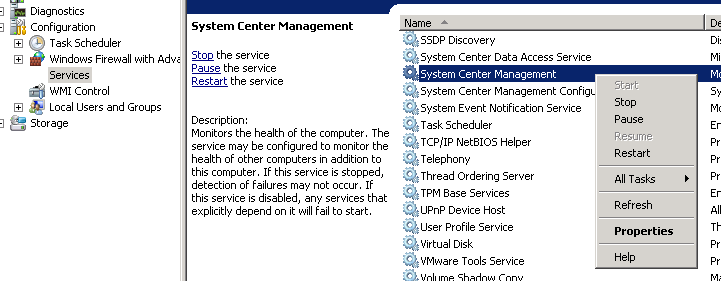
          After upgrading the management server, you should restart the System Center Management services.  It may not need the service bouncing, but while we're working on the system it's certainly not going to damage it.

          Use Server Manager to give the System Center Management service a restart by right clicking on it and and then click Restart.

          It's worth checking the event log at this point to make sure it's not a sea of red alerts.

          First thing (apart from noticing no Red!) I notice is a new type of event in the log, "Data Connectors", and lots of them, 452 in about 20 mins for my setup.

          Now I'm guessing (It's a bit hard without proper release notes) that these are better information logging regarding the data flow from the connectors which is great.

          Time to start the console, and look, a new splash screen ;)


          First impressions are that it feels faster, but I'll need more time to test that.
          I went straight to the All Computers view under Configuration Items to see if something I had been waiting for was there, and it was!

          Operating System information pulled from Active Directory!


          That is, I assume it's pulled from AD.  I say assume as I checked the history tab on several of my CI's and not one of them showed any update from the AD Connector related to Operating System name/version.

          I also tried creating a new view to see if the large breadcrumb problem had been fixed.
          Well it's not fixed on my test box after an upgrade.  I'll do further testing to see if a fresh slipstreamed install is any better.

          Apart from that, it's looking good.
          As I get more time with it and also try a slip streamed install I'll post back with some further details.
          

          Step by Step Upgrade Guide for Service Manager 2010 Service Pack 1 (SP1) - Part 1: Data Warehouse

          Before I begin, it's important to stress that while this should guide you through the install, you should always start by reading the official upgrade guide (SM_UpgradeSP1.docx) found here:
          http://www.microsoft.com/downloads/en/details.aspx?FamilyID=37887bba-d26a-427f-896d-883e5868bbfe

          This is part 1 - Data Warehouse SP1 Upgrade, but the first section is common across the different parts.

          Things to do before SP1 Install
          1) The upgrade cannot be done on a server that has an Operations Manager 2007 Agent installed.
          I'm not going to screen shot the process as it's fairly straight forward.
          Easiest way is to go to the Administration part of the SCOM console, Managed Agents, find the Service Manager servers and right click and choose uninstall.

          2) Backup your Service Manager databases.
          Again, very simple, either use the SQL Server Management Studio to back them up, or whatever backup solution you have (DPM, CommVault etc)

          3) Backup your encryption keys.
          To be honest, this should have been done when Service Manager was first installed.
          If it was, then you can skip ahead as the same keys will work after the SP1 install so there's no point duplicating work.
          If you didn't (shame on you) or you're not sure then use the Encryption Key Backup or Restore Wizard to back up the encryption keys on the Service Manager management servers.
          This can be found on the SP1 media AMD64\Tools\SecureStorageBackup\SecureStorageBackup.exe
          It's wizard based, just step through it.

          4) If you've got a data warehouse, but haven't registered it with SCSM, now is the time to do it.  You can't upgrade it to SP1 until you have. See the procedure in “Registering with the Service Manager Data Warehouse to Enable Reporting” in the System Center Service Manager 2010 SP1 Deployment Guide http://technet.microsoft.com/en-us/library/ff461143.aspx for more details.

          5) Self Service Portal - Company Logo backup.
          If you replaced the original graphic with one of your own design, you must save a copy of your graphic. During the upgrade, SCSM_logo.png is replaced. After the upgrade, overwrite the SCSM_logo.png file with your version in the locations shown below:
          %inetroot%\inetpub\wwwroot\System Center Service Manager Portal\EndUser\MasterPages\Images
          %inetroot%\inetpub\wwwroot\System Center Service Manager Portal\Analyst\Images

          Right, now for the fun bit!

          Part 1 - Data Warehouse upgrade
          The upgrade guide states that you should logon with an account with administrator rights, I prefer to logon to the data warehouse using the account that was used for the initial setup.

          Next, you cannot start an upgrade if any data warehouse jobs or workflows are running. Use the following procedures to stop the data warehouse job schedules and wait for them to complete.

          1. List the data warehouse jobs by using PowerShell cmdlets
            a. On the computer that hosts the data warehouse management server, open PowerShell
            b. Type the following commands (each is a separate one so press enter after each):
            Set-ExecutionPolicy RemoteSigned
            Add-PSSnapin SMCmdletSnapIn
            Get-SCDWJob

            c. A list of the data warehouse jobs is displayed. Use this list in the next step
          2. Disable data warehouse job schedules by using PowerShell
            a. Type the following commands for any job that was listed in the previous step:
            Disable-SCDWJobSchedule –JobName Extract_<DW management group name>
            Disable-SCDWJobSchedule –JobName Extract_<SM management group name>
            Disable-SCDWJobSchedule –JobName Transform.Common
            Disable-SCDWJobSchedule –JobName Load.Common
            Disable-SCDWJobSchedule –JobName DWMaintenance
            Disable-SCDWJobSchedule –JobName MPSyncJob
            Start-SCDWJob –JobName MPSyncJob
          The last command to start the MPSyncJob will enable the ETL jobs to run to completion and after that, because all the schedules have been disabled, the jobs will stop.

          3. To determine that the data warehouse jobs have stopped running
          a. In the Service Manager console, click Data Warehouse.
          b. In the Data Warehouse pane, expand Data Warehouse, and then click Data Warehouse Jobs.
          c. In the Data Warehouse Jobs pane, observe the Status column for each data warehouse job. When the status for each job is listed as Not Started (The Manual says "Stopped" but after two hours of waiting I never saw it change from "Not Started"), then we're good to start the upgrade of the data warehouse management server.


          4. Locate the SP1 media files (CD, ISO Mount or extracted files, it's your choice) and run setup.exe in the AMD64 folder (It will always be the AMD64 folder, not the x86 folder as the server components are x64 only). A quick splash screen and short extraction of files will be done.


          Step though the wizard, selecting to upgrade the data warehouse on the first screen then accepting the license terms.


          Check the pre-requistes screen (Yes I know I'm short on memory but it's my test box!)


          On the next screen review the summary.  It's also a good idea to copy & paste the information for later reference/documentation.


          Click install and let it get on with installing.


          Untick backup encryption keys as we did that before starting the upgrade.  If you didn't, then you should have gone to Specsavers... do it now!

          After upgrading the data warehouse management server, you should restart the System Center Management services and data warehouse jobs.  It may not need the service bouncing, but while we're working on the system it's certainly not going to damage it. 
          In my case the service was stopped, so it's definitely something to check.

          Use Server Manager to give the System Center Management service a restart by right clicking on it and and then click Restart.


          Back to Powershell and use the following to re-enable the data warehouse jobs
          Add-PSSnapIn SMCmdletSnapIn
          Enable-SCDWJobSchedule –JobName Extract_<data warehouse management group name>
          Enable-SCDWJobSchedule –JobName Extract_<Service Manager management group name>
          Enable-SCDWJobSchedule –JobName Transform.Common
          Enable-SCDWJobSchedule –JobName Load.Common
          Enable-SCDWJobSchedule –JobName DWMaintenance
          Enable-SCDWJobSchedule –JobName MPSyncJob
          Start-SCDWJob –JobName MPSyncJob
          The last command, Start-SCDWJob – JobName MPSyncJob, will enable the ETL jobs to run.
          After running the powershell enable-SCDWJobSchedule cmdlets I was slightly worried that it was still showing them as not enabled.
          Checking the console showed the same.
          However, give it a minute and it enables them.


          And that's about it!

          Well, not quite.
          It's worth checking the event log at this point.

          I've got quite a few error messages relating to MP deployment and association.
          Some I can ignore as they are related to my custom MP that's I'm busy testing.
          Others, I'm not so sure. 
          Management pack name: ServiceManager.Datawarehouse.Library
          Management pack version: 7.0.6555.0
          Management pack name: System.Software.Library
          Management pack version: 7.0.6555.0
          Management pack name: Microsoft.SystemCenter.Orchestration
          Management pack version: 7.0.6555.0
          Management pack name: Microsoft.SystemCenter.Deployment.Library
          Management pack version: 7.0.6555.0
          Management pack name: System.Hardware.Library
          Management pack version: 7.0.6555.0

          And the list goes on...

          Now this is my test environment so it could be a number of things I've done, and I've yet to update the Management Server yet either.

          I'll update this post with further findings as I do more of the upgrade and other boxes.

          Coming next, Part 2 - Management Server SP1 Upgrade.

          Tuesday, 14 December 2010

          Service Manager 2010 SP1 Released (Kind of)

          Rather than being fully released, there has been a date for release released.... (Say that one fast!)

          This Thursday the 16th December has been marked as the release date, more information can be found here:
          http://blogs.technet.com/b/systemcenter/archive/2010/12/14/system-center-service-manager-2010-service-pack-1-available-december-16-2010.aspx

          Monday, 6 December 2010

          Service Manager 2010 Service Pack 1 (SP1) Documentation Available

          The documentation for Service Pack 1 for Microsoft System Center Service Manager 2010 is now available for download.

          http://www.microsoft.com/downloads/en/details.aspx?FamilyID=37887bba-d26a-427f-896d-883e5868bbfe


          I'll be trying this on our test environment as soon as it's available for download as there looks to be a few steps to complete in terms of disabling data warehouse jobs, checking display strings in custom MP's.

          Above all, RTFM!

          I'll post back as soon as I've run through an upgrade (once the SP is available!)

          There is still not an official list of fixes contained in the documentation set, that will more than likely be in the release notes included with the Service Pack however, here's a couple of snippets from the documentation regarding upgrading.

          Upgrade Order and Timing

          The order of your upgrades is important. Perform the upgrade in the following order:
          1.    Start with the data warehouse management server. Your System Center Service Manager 2010 management servers can work with the System Center Service Manager 2010 SP1 version of your data warehouse management server.
          2.    After the upgrade to the data warehouse management server has been completed, upgrade the initial Service Manager management server. If you created more than one Service Manager management server, the initial Service Manager management server would have been the first one that you created.
          3.    Upgrade the Service Manager consoles, any additional Service Manager management servers, and the Self-Service Portal.
          The timing of your upgrades is also important. After you upgrade your data warehouse management server, you can wait before you continue. However, after you upgrade your initial Service Manager management server, you must be prepared to upgrade your Service Manager console(s), additional Service Manager management servers, and Self-Service Portal at the same time.

          Service Manager 2010 SP1 with an Operations Manager Agent

          If you have an Operations Manager agent installed on either your Service Manager management server or data warehouse management server, you must remove the agent before performing an upgrade to Service Manager 2010 SP1.