Thursday, 25 October 2012

Windows 8 Skype App to the Rescue!

Sweet... That about sums up my thoughts for the new Skype App.
Not that I've used it in anger or that I'm a long time Skype user, no.

In fact, before today, I've never used Skype.  Of course I had heard of it and was aware what it did, just that I've never had a need for it.

Until today.  Just hours after it being released I found myself on a conference call where the only available audio option was via dialling the states.
Say what?!?!?  Hang on, I'm on a mobile here in the UK, this is going to get expensive really quickly.

So knowing that Skype had just hit the store I quickly installed it (I love one click installs!) it used my Microsoft ID to single sign on (SSO) straight in, allowed me to dial a US Toll Free number as if I was in the states and then docked nicely to the side while I watched the presentation.


Skype App to the rescue!!  Now I'm hoping that it works nicely on my Surface RT (fingers crossed it does come tomorrow and not 2nd Nov...)

Friday, 19 October 2012

System Center 2012 - Service Manager Cookbook

Well, it's a wrap!!

The System Center 2012 Service Manager Cookbook went into the production phase today and should be available shortly to purchase in it's final version opposed to the RaW version that was available previously.

I really do hope that people find this a useful resource when working with Service Manager and it's been a pleasure working with the top guys from Europe as a team on this project, those guys seriously think on a whole new level around Service Manager and in fact System Center in general!

For now, enjoy the eye candy that is the final cover of the book with a spectacular view from the top of Europe.

System Center 2012 - EndPoint Protection Cookbook

While I'm waiting for the PackT publishers to spit and polish the Service Manager Cookbook I thought I would download another of their offerings.

So after digging through their library I settled on the System Center 2012 EndPoint Protection Cookbook by Andrew Plue.

Once I've read it or most of it I'll pop a little review online.


Friday, 12 October 2012

VMM 2012 SP1 (Beta) with Server 2012 Hyper-V Issue

After migrating my 2008 R2 cluster across to Server 2012 I was having problems adding in the cluster/hosts to SC2012 Virtual Machine Manager SP1.

The cluster could be discovered and imported fine, but a few minutes later would report back that it could no longer be managed.

It turns out that because on the rebuild I didn't make the hosts DC's (it's a testlab before someone comments on best practise!!) so the computer accounts got placed into an OU along with the normal servers that had a Group Policy applying some WinRM settings.
Unfortunately doing a winrm /qc or allowing VMM to check that WinRM is enabled doesn't set/check all the required settings are actually in place.

Having a look around I found the following TechNet forum post from Wes Kroesbergen who listed a registry key that's advisable to have set, plus the winrm commands to set all of the required settings.

http://social.technet.microsoft.com/Forums/en-US/virtualmachingmgrhyperv/thread/4bd9be4b-0ff9-46f3-bf32-1b7c1245c494


Wrap the below into a batch file (you can't use these commands via PowerShell before you try), run it on your Hyper-V hosts and you're good to go!

reg add HKLM\SOFTWARE\Microsoft\Windows\CurrentVersion\Policies\System /v LocalAccountTokenFilterPolicy /t REG_DWORD /d 1 /f

winrm set winrm/config/service/auth @{CredSSP='True'}
winrm set winrm/config/winrs @{AllowRemoteShellAccess='True'}
winrm set winrm/config/winrs @{MaxMemoryPerShellMB='2048'}
winrm set winrm/config/client @{TrustedHosts='*'}
winrm set winrm/config/client/auth @{CredSSP='True'}

SCVMM 2012 SP1 - Missing properties and unable to refresh VM

Giddy as a kid in a sweet shop I migrated my testlab cluster to Server 2012, migrated my VM's across and installed System Center 2012 Virtual Machine Manager SP1 to manage it.

Straight away I ran into some slightly strange issues.

  1. Majority of the Auto Discovered VM's refused to see hardware configuration properties such as:
    Virtual Hard Disks and Controllers
    Virtual Network Cards
  2. Majority of the Auto Discovered VM's left hardware configuration properties at defaults, such as:
    Processor Count and Memory Amount
    High Availability Status
  3. Every time I tried to refresh a VM I would get the error:
    Error (2923)

    A malformed response was received while trying to contact the VMM agent on hyperv01.domain.local.
    Unspecified error (0x80004005)

    Recommended Action
    1) Ensure the VMM agent is installed and that the SCVMMAgent service is running.
    2) If the SCVMMAgent service is running, restart the service, and then verify that WS-Management is installed correctly and that the WinRM service is running.
    3) Check the manufacturers' Web sites to ensure that you have the latest drivers for your network adapters and other devices.
Looking on the Microsoft Connect site I found that someone called egilsk was having the same issues.

Thankfully, last Friday (05/10/12) Mark at Microsoft posted the following suggestion to try:

On the Hyper-V hosts run the following PowerShell commands

Import-Module Hyper-V

Get-WmiObject –Namespace “root\virtualization\v2” Msvm_PlannedComputerSystem | foreach{Get-VM –Id $_.Name} | Remove-VM –Force

Once this has been run on your hosts, refreshing the VM's should work successfully and all of the missing/default hardware config should be updated and displayed.

It looks like this is to do with the hosts having the VM stuck in a temporary state, even if brought across as a planned import or migration.

The problem is now at least known about and should be fixed/handled in the next release of the Service Pack.

Tuesday, 25 September 2012

Technical Documentation for System Center 2012 SP1 (Beta)

Very quick blog just to list the links for my reference to the technical documentation downloads for System Center 2012 that have been updated for the Beta release of SP1.

Technical Documentation Downloads for:

Windows Embedded Devices and Configuration Manager 2012 SP1

Managing Windows Embedded Devices has always been possible with Configuration Manager, either with a lot of manual effort and scripting or more preferably using Windows Embedded Device Manager (WEDM) 2011 on top of ConfigMgr 2007.

When System Center 2012 was released back in April we were promised an updated WEDM 2012 version would be coming along shortly.

With the release of Service Pack 1 (Beta) for System Center the decision has been made to combine the features that would have been in WEDM directly into ConfigMgr.

This is brilliant news as it now means that out of the box with ConfigMgr SP1 we will now be able to manage and deploy to Embedded Devices without having to install any extra clients or infrastructure.

Here are a couple of bits of information around some of the new embedded features.

Within the different deployment wizards you'll now start to see various options related to Embedded Devices which will help control the disabling and enabling of write filters.


Along with utilising ConfigMgr features such as Maintenance Windows, WED client management is optimised in areas such as content download/reducing reboots.

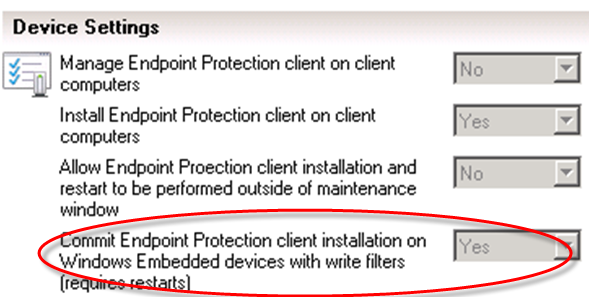
EndPoint Protection gets some specific Embedded device settings...


OSD for Embedded Devices will now allow images to be deployed purely from the distribution point (due to the low storage on thin clients) as well as allowing for a last step to be run after deployment, such as a script to enable auto-logon or enable write filters.

Non-admins will be blocked from logging onto devices during servicing.

Software Center will block self service installations when write filters are enabled to stop users getting into Ground Hog Day scenarios.

Best Practises:
  • Maintenance Windows will become more important/heavily advised to simplify management of embedded devices
  • Plan for your persistence strategy
  • Make deployments Required rather than available for embedded devices
  • Look to use file write filters moving forward to make life simpler

Supported Operating Systems:
  • Windows XP Embedded,
  • Windows Embedded 2009 Standard
  • Windows Embedded Standard 7
  • POS 2009
  • POS 7
  • Windows Thin PC
In short.. WEDM 2012 is no more!!  Long live ConfigMgr 2012 SP1!!